Ask the sky — the assistant
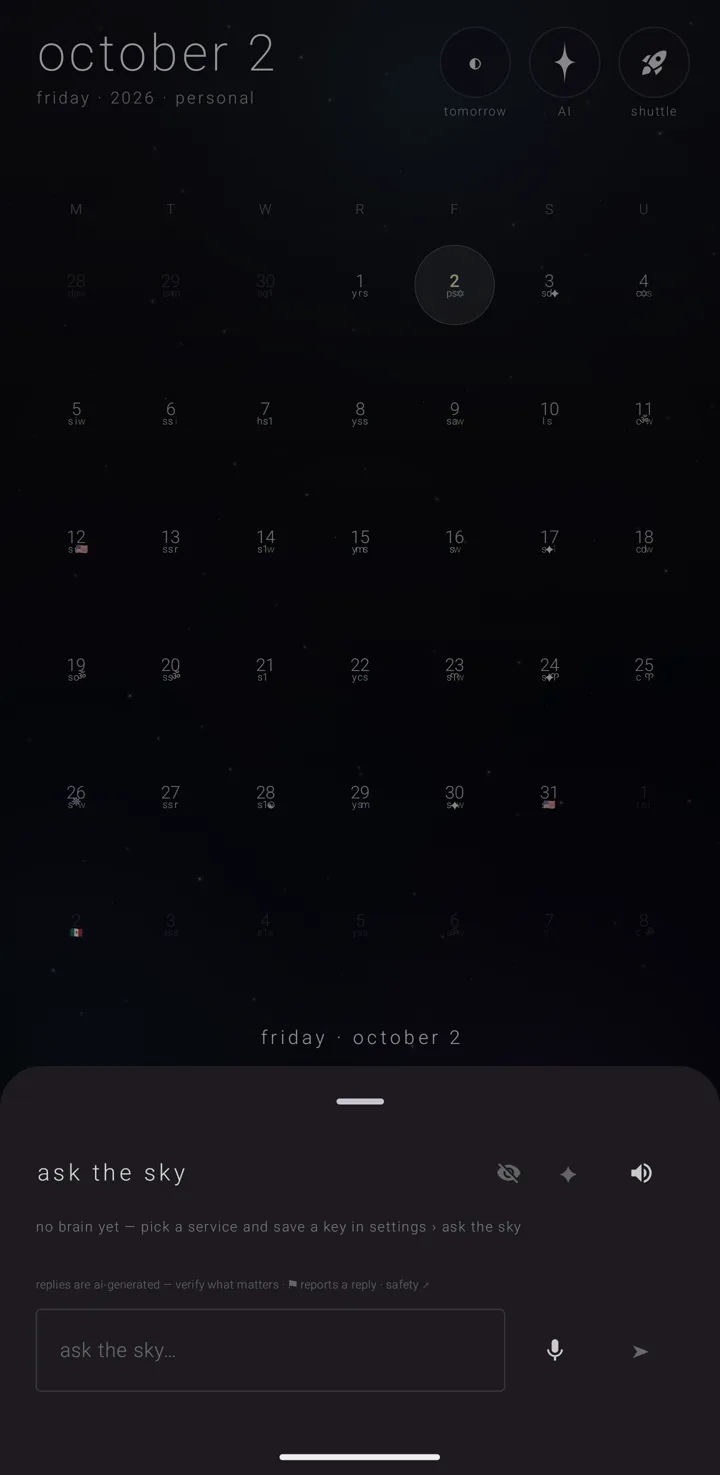
Ask the sky is the calendar's own assistant — an AI you type or speak to. It answers you, and it can also act on the calendar. It can place a commitment — one thing you have to do, the app's word for an event — change one, or look through your days.
It can also use the abilities of any other Zenith app on the phone. That is how one ask can look at your tasks and place the result in your calendar.
Where you find it
The main door is the "AI" button in the top-right corner of the sky — the whole calendar screen. It is drawn as a star and described "ask the sky". It sits beside "tomorrow" (◐, a half-lit circle) and "shuttle".
The same assistant waits in other places, each one already pointed at something:
- The "AI" button at the top right of a commitment's page opens a talk about that one commitment.
- An almanac's page has "ask the sky about this almanac". An almanac is a named, coloured layer of commitments, like one calendar.
- The binder — the page where your almanacs live — has "ask the sky about your almanacs".
- "✦ ask the sky about it" — the ✦ is a star — sits on an item in the shuttle and on something shared into the calendar.
- "✦ plan it with the sky" sits on the tomorrow sheet.
- "ask the sky" is one of the shortcuts you get by holding the app's icon. With the assistant off, it says "turn on ask the sky in settings first" instead.
The sheet
The sheet is titled "ask the sky". Under the title, one line says who is listening and which service is answering: "‹name› is listening · ‹service›". The title line also carries four small marks with no words on them. Chat memory & interpret screen says what each one does.
At the foot sit three things: a field reading "ask the sky…", a microphone described "speak your ask", and "➤", the arrow that sends. All three stay unavailable while no service can answer, or while an answer is on its way. While it works, the sheet reads "the sky is thinking…".
Under the talk runs a standing reminder: "replies are ai-generated — verify what matters · ⚑ reports a reply · safety ↗". The ⚑ is a flag, and every reply carries its own. One tap reports that reply. The mark then reads "reported", and the report is kept on this phone only.
Some replies have fixed wording:
- A reply that acted but said nothing shows "done — N action(s) taken on your calendar ✦".
- A reply that neither spoke nor acted shows "…the sky said nothing."
- A service that can't be reached shows "the sky is unreachable (…)".
- Gemini busy, after two tries of its own, reads "Gemini is busy right now. Try again in a moment."
- Gemini at the limit for your key reads "Gemini's limit for your key is reached for now. Try again in a minute."
- A Claude reply that runs past about 3,000 words is cut off and ends "(cut off — the reply reached its length limit. Ask for it in parts.)". Anything that reply asked to do is dropped rather than done with half its details.
When another model answered. If the Gemini model you chose no longer exists on your key, another one answers instead, and the sheet says so once, on its own line above the reply: "(Your chosen model, ‹the one you chose›, isn't available on your key, so ‹the one answering› is answering.)" It is never spoken and never remembered. The model you typed is left as it is.
Who answers, and which service
Two things stand behind every reply. Who speaks is Cielo — the personality the replies are written in. The calendar doesn't choose her; she comes from the suite. She, and the lenses that shape how she answers, are on Cielo & lenses.
Which company works out the words is the calendar's own choice. You pick it on settings › "ask the sky", under "THE SERVICE — calendar's own", from ten rows. Each row is tagged "key saved ✓" or "needs a key". The last, On-device (Gemini Nano), reads "on-device · no key needed · answers only, cannot change the calendar". Your choice here changes nothing elsewhere in the suite.
Under "THE KEY · ‹SERVICE›" is a field reading "paste your key — encrypted on-device, shared suite-wide". Beside it are "get a key ↗" and "save key", plus "remove key" once a key is held. A saved key is shared by every Zenith app — see Shared keys & connected accounts.
"save key" checks that the key really landed, and says which happened:
- "‹service› key saved — the whole suite shares it"
- "‹service› key was not saved — the one you had before still answers. try once more"
- "‹service› key could not be kept on this phone — its lock may have changed since. try once more"
A save that fails never deletes the key you already had.
Under "THE MODEL · ‹SERVICE›" you may type one model name. Leave it empty and the service's own default is used.
A chosen service with no key answers nothing. It never falls through to another company. The line under the title reads "no brain yet — pick a service and save a key in settings › ask the sky".
The on-device choice only answers
On-device (Gemini Nano) runs on the phone itself. It is handed no tools — the abilities that let the sky change things — so it can't place a commitment, change one, or open a screen. One question, one answer, nothing done.
It also needs a recent phone with Google's own on-device AI present and its model already downloaded. Where that is missing, there is no brain at all. The calendar never quietly sends your words to a company instead.
The switch
"zenith ai in this app" is the first row of settings › "ask the sky", and it starts on. Turn it off and the "AI" button, the talks and the assistant's cards are gone. Other Zenith apps can no longer act on this calendar either.
The suite's own master AI switch must be on as well. Nothing is sent unless both are on.
Asked first, checked both ways
Before your words reach a keyed service for the first time, the calendar asks "send to ‹service›?". It names the company, its host, and everything that can travel with your words. "not now" sends nothing: the talk says "nothing was sent — your words stay on this phone", and your question goes back in the field.
It asks once for each company. Every yes is listed under "SENT WITH YOUR YES" on settings › "ask the sky", each with "withdraw", and "withdraw all" beneath. Withdraw one and the next send asks again. The on-device service never asks, because nothing leaves.
Every ask is checked on this phone before it is sent, and every reply before it is shown or spoken. A restricted one is refused right here. Anything that burns, drops, removes, withdraws or clears waits behind a switch called "allow destructive actions". The details are on Safety, consent & your rights and What the sky can do — commitments.
See also.
Cielo & lenses · Speaking, one commitment & tomorrow · Safety, consent & your rights · Ask the Sky across the suite