Speaking, one commitment & tomorrow
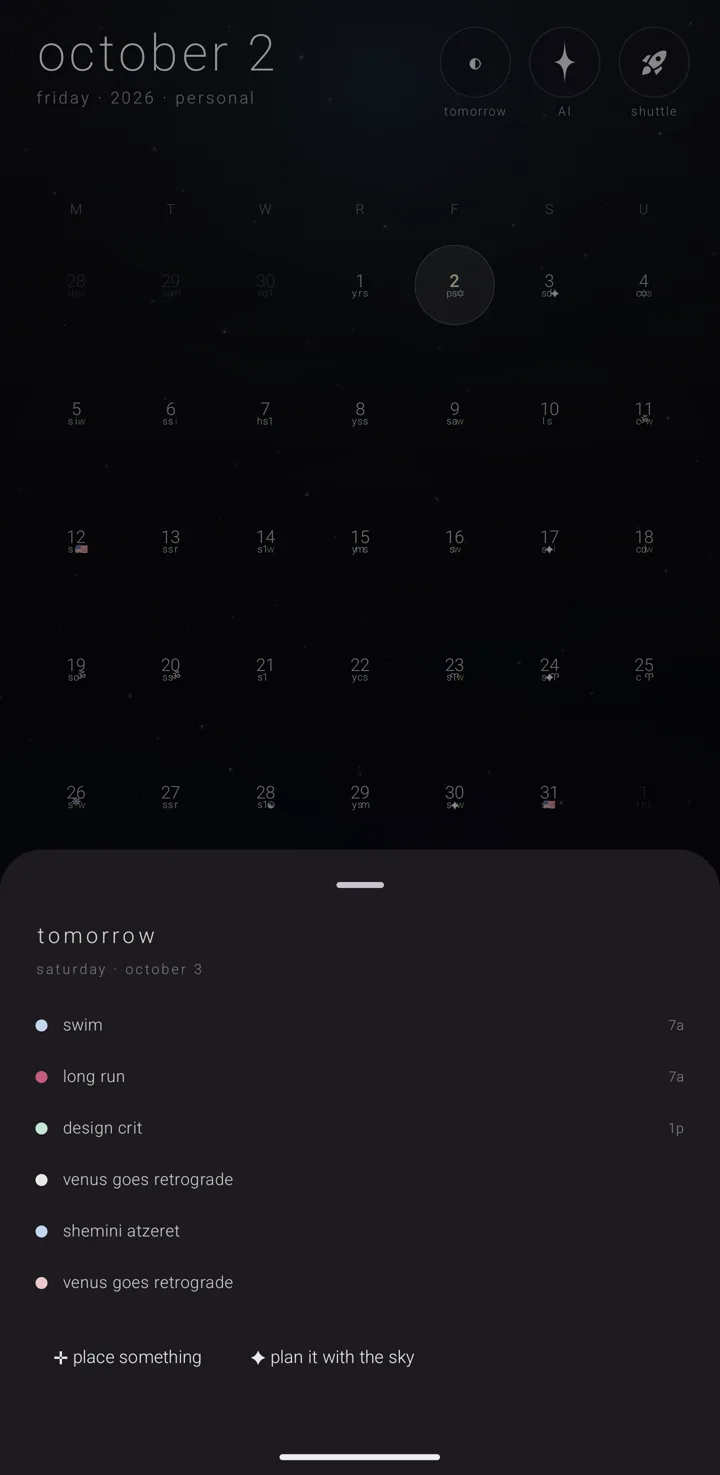
Three ways into ask the sky — the calendar's built-in AI assistant — when it is already pointed at something: speaking instead of typing, a talk about one commitment, and planning tomorrow. The assistant itself is on Ask the sky — the assistant.
Speak your ask
- Tap "AI", the star in the top-right corner of the sky — the whole calendar screen.
- Tap the microphone beside the field, described "speak your ask".
- Speak. The phone's own speech screen listens, and what it heard is asked at once, with no second tap.
Say a whole commitment into the form
A commitment is one thing you have to do. You can say one in a single ramble and let the sky fill in the form.
- Open the commitment form — for example with ✛ (a cross), "add", in the bottom-left corner of the sky.
- Tap the microphone at the end of the title field, described "say it — the sky fills it in".
- The phone's speech screen opens with the prompt "say the whole thing — the sky fills it in". Say it all in one go.
- While it works, the microphone turns into ✦ (a star) and "the sky is filling it in…" shows.
- Read the draft. Only the fields the sky actually heard are written: the title, the day, the time, how long it runs, whether it happens once, repeats or returns yearly, how often it repeats, the place and the notes.
- Fix anything that is wrong, then place it from the form yourself.
Nothing is saved for you. The form stays the one place a commitment is placed, so you always see and approve what was heard before you keep it. How the form works is on Add a commitment.
When the sky can't be used
The phone reads your words itself instead. It fills in the title, the day and the time, with no key and no connection. This happens when:
- the safety check refuses the words;
- there is no service chosen, or no key saved;
- you have not said yes to that company yet, or you said no;
- nothing usable comes back.
With "zenith ai in this app" off, nothing reaches an AI at all. That covers this microphone, text shared into the calendar, text you selected in another app, and words dropped on the sky from the shuttle. Every one of them falls back to the phone's own reading.
What the sky filled says so
A draft that came from an AI service marks the form for as long as the form is open: "✦ filled by the sky — ai-generated · verify what matters". Beside it is ⚑ (a flag). One tap reports the draft, and the flag then reads "reported". A reading the phone did by itself leaves no mark.
Not the same as "speak commitments"
The microphone at the bottom left of the sky, labelled "voice" and described "speak commitments", is a different door. It hears several commitments in one breath, and the phone reads them on its own, with no AI anywhere in it.
Talk about one commitment
- Open the commitment's page.
- Tap "AI" at the top right. The sheet opens titled "talk · ‹the commitment's name›".
- Ask your question.
That commitment rides along with every question: its name, its day, its time, its place and the beginning of its notes, told in this phone's own clock. The sky is asked to keep the talk about it.
A talk like this is never remembered, and it never reads your remembered talks back. So the "remember" button is not drawn in it. Everything else is the same sheet: the same safety checks, the same service, the same yes, the same abilities, the same reading aloud, and the same ⚑ on each reply.
If the eye on the sheet is open, the line describing your screen still describes the view behind, not the commitment. See Chat memory & interpret screen.
Plan tomorrow
- Tap ◐ — a half-lit circle, labelled "tomorrow" and described "plan tomorrow". It sits at the top right of the sky, left of "AI" and "shuttle".
- Read the sheet. It is headed "tomorrow", then tomorrow's weekday and date, then tomorrow's commitments in reading order with their times. An empty day reads "a quiet day so far — nothing placed yet". Tap a commitment to open its page.
- Choose one of the two buttons below: - "✛ place something" opens the commitment form on tomorrow. - "✦ plan it with the sky" opens ask the sky with the request already written and already asked. It is drawn only while the assistant is on.
The written request asks the sky to plan tomorrow with you, step by step. It hands over what is already on the calendar. It asks the sky to look at your open tasks where another app offers them, propose a gentle plan, ask you what to confirm, then place what you agree on.
Whether there are tasks to look at depends on what else is installed. With no task app on the phone, there are no tasks to find. When a commitment is placed in that talk, the sheet closes back to wherever you opened tomorrow from.
See also.
Ask the sky — the assistant · Add a commitment · The morning, the evening bell & tomorrow · Chat memory & interpret screen