Arriving files & shares
Nothing that arrives becomes anything by itself. A file is read, shown to you, and left waiting until you say what it becomes. The same goes for words shared in from another app.
Where files come in
There are three doors:
- The binder — the place where every almanac lives — has a panel behind the gear ⚙. In it, tap "bring in an almanac from a file": "a .zca, a .zen of material, or a zip holding both". A .zca is an almanac file. A .zen is a pack of its material, the files an almanac carries.
- settings › "files" › "open an almanac…".
- Tap one of Zenith Calendar's own files anywhere else on the phone.
The first two doors wear a "✦" until you have Zenith Gold. The ✦ is the gold spark that marks what Gold opens.
The app recognises its own files by kind and by name. That includes older files saved under earlier names.
An almanac file
A sheet rises, headed "an almanac arrived" or "N almanacs arrived". Under it: "nothing is added until you make it an almanac."
An almanac is a named, coloured layer of commitments, like one calendar. Each arriving one is listed with:
- its name,
- how many commitments it carries,
- whether its material came with it, and
- a "make it an almanac" button.
At the foot, "not now" sets all of them aside.
Same name already here. The sheet says so in amber: "you already have an almanac called “‹name›” — this makes a second one beside it". The button becomes "make a second one". Bringing an almanac in always adds. It never overwrites.
Gold. Taking an almanac in (Gold) is the same Gold as sending one out, named "sending an almanac". Without it, the offer opens and nothing is made. See Backup, restore & sending an almanac.
When it is done, it says "imported N almanac(s) · N events". It adds "· N file(s)" where the material came, or "— its material (‹name›) was not beside it" where it did not.
A commitment card
A commitment is one thing you have to do. When someone sends you one as a card, a sheet asks "place “‹title›” on…" and lists the almanacs that can take it. The one named like the sender's own comes first.
If none can, it says: "no almanac here can take it — a locked one, an archived one, and one fed by a calendar that is read only cannot."
"make a new almanac for it" is the only way a card makes an almanac. That one counts toward the three almanacs you can make for free, beyond the ones the app ships with.
The card's files follow it onto whichever almanac you chose. For sending cards, see Share a commitment.
A pack of material on its own
A pack joins its almanac: "N file(s) added to “‹name›”".
If that almanac is not here yet: "“‹name›” is not one of your almanacs yet — open its .zca and make it an almanac first".
Refusals
Each refusal names itself:
| What arrived | What it says |
|---|---|
| A backup of a whole calendar | "that is a backup of a whole calendar — install it from settings · files" (see Backup, restore & sending an almanac) |
| A locked almanac | "“‹name›” is locked — unlock it first" |
| Anything else | "the calendar does not know that file" |
| A file that cannot be read at all | "could not open that file" |
Words shared in from another app
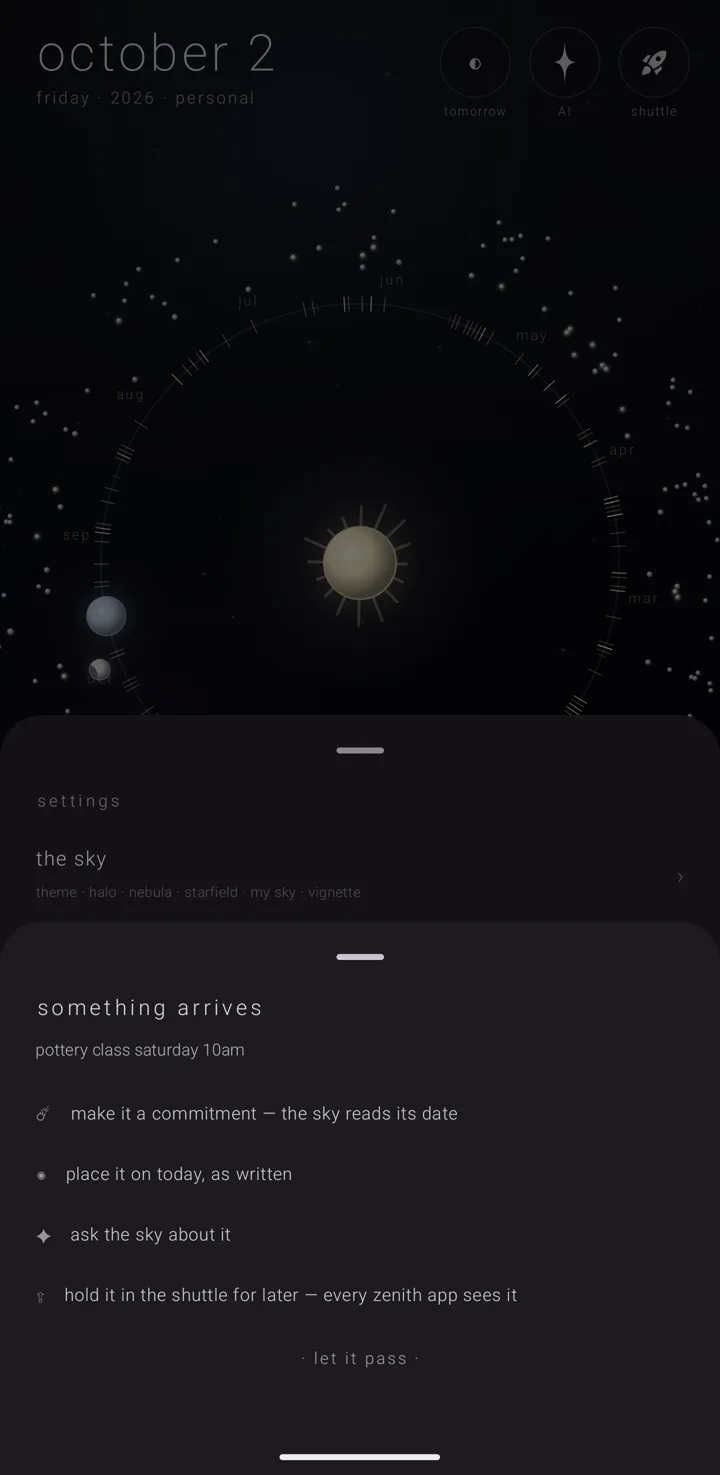
Words shared from another app take a different path. They get their own sheet, headed "something arrives", with the words under it — up to four lines, the rest trailing off. There are four choices:
- "☄ make it a commitment — the sky reads its date" — the ☄ is the meteor, the mark of a commitment that passes once. It opens a new commitment on the date it read, with the title, notes and time already filled.
- "◉ place it on today, as written" — ◉ is a filled circle. The words become the title, cut to eighty letters. Where they run longer, the whole of them become the notes.
- "✦ ask the sky about it" — offered only while "zenith ai in this app" is on. See Ask the sky — the assistant.
- "⇪ hold it in the shuttle for later — every zenith app sees it" — ⇪ is an up arrow over a bar. It puts the words on the shared tray and says "held in the shuttle".
"· let it pass ·" closes the sheet, and so does back.
Nothing is placed until you keep the form. Backing out of the form brings the four choices back. If the phone closes the app while the sheet waits, the words are kept and the question is asked again when you return.
The shuttle
The shuttle is the one tray every Zenith app shares. Open it with the rocket in the top-right corner of the sky. It also opens from the binder, an almanac's page, a commitment's page, and settings › "shuttle".
Each row has a mark, the words, and a "⋮" of three dots. "⊐", a bracket, means a file. "❝", an opening quote, means a scrap of text.
Tap the words to see what the calendar can do with it:
- For a scrap: "☄ make it a commitment"; "◉ place on ‹M/D›", for the day chosen on the sky; "✦ ask the sky about it" while the assistant is on; and "→ send to tasks", only where Zenith Tasks is installed.
- For a file: "⊕ keep it in an almanac" (⊕ is a circled plus).
Hold the words to lift the row and drag it onto the sky behind. Dropped on a day, a scrap becomes a new commitment there. A file becomes that commitment's material.
Using something never takes it off the tray. Only "− let it go" (− is a minus) and "clear all" do.
"clear all" empties the shuttle in every Zenith app, not only this one. It warns you first.
For more, see The Shuttle in the calendar.
See also.
Backup, restore & sending an almanac · The Shuttle in the calendar · The Shuttle · Share a commitment