A commitment's page
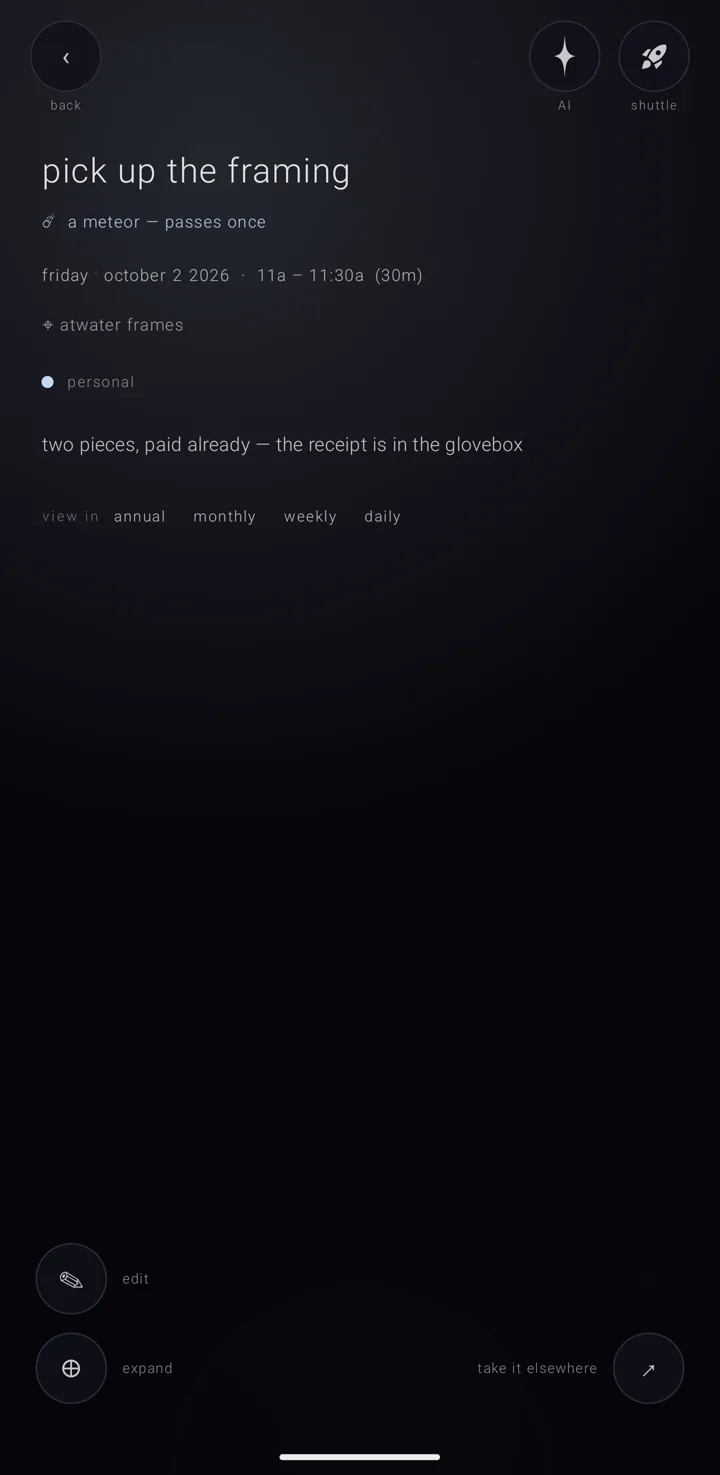
Each commitment — anything on your calendar — has its own full-screen page. It is made to be read, not filled in: a presentation, not a form.
The page is about one day. That is the day named by whatever opened it. If that named no day, it is the occurrence nearest the day the calendar is looking at. Everything on the page — the date line, a shared line, a card made from here — uses that same day.
How to get there
Tap a commitment anywhere it is listed or named:
- a row in the day's brief — the list of a chosen day's commitments along the bottom of the sky, the calendar's main screen. Tap once to hold the row, then tap the held row again.
- an almanac's list of its commitments
- tomorrow's plan
- a reminder
- a widget row
- a link into the app
"☰ view" in a held brief row's menu goes straight to the page. The assistant can open it too, and can ask for one of its sheets to be open when it arrives.
What is on it
The name comes first, set in the size, case and alignment the page's look asks for. The blocks below follow in the order that look names. A block the look does not name is not drawn — that is how "the field" leaves out the kind line and the links.
- What kind it is. "☄ a meteor — passes once"; "↻ an asteroid — returns every week", "every other week" or "every month"; or "✦ a fixed star — every year". One on a longer rule says that rule in the same voice. See Times & repeats.
- When. The weekday, then the date, then the time — and each piece is its own tap. The weekday goes to the week view, the month to the month view, the day and the time to the day view, the year to the year. A timed one says its end and its length. One that runs past midnight names the day it ends. An all-day one over several days says "all day, until ‹day›". A sky moment shown as a day, such as a full moon, adds its exact time, as "at 2:13a". If its clock is kept somewhere else, both clocks are named — see Time zones. Under another calendar system, the date is written in that system's order, with the gregorian date small underneath.
- Where. "⌖ ‹place›" — the crosshair the app uses for a place — with " · on the map" added when it is pinned, and the full address quietly under it. A tap opens maps on the pin, or on a search for the words. With no maps app on the phone, it says "nothing on this phone opens maps".
- Who is joining. In the same block, under the place: "☌ joined by " and the names in lower case. See People on a commitment.
- Its almanac. A coloured dot and the almanac's name. An almanac is a named, coloured layer of commitments, like one calendar. A tap opens that almanac's page, and this page comes back when you leave it.
- Notes, as you wrote them.
- Links. "⛓ ‹app› · ‹kind›" — a chain row that opens the linked item in another Zenith app.
- Material. "❍ ‹file›" — a ring, the file's name and its size. A tap opens the file, or says "nothing on this phone opens that kind of file".
- "what you fill in" — the small form this commitment carries, answered right here. See What you fill in, material & place.
- "view in" — "annual", "monthly", "weekly" and "daily".
- "days off" — each day taken off a repeat, with "put back", which answers "‹day› is back". This block shows whatever look the page wears, so the way back from a change can never be hidden.
The corners
| Corner | What is there |
|---|---|
| Top left | "‹" with the word "back" |
| Top right | a star ✦ that asks the sky about this commitment (only while the assistant is on), and the shuttle's rocket with its count |
| Bottom left | "✎ edit" and "⊕ expand", a circled plus |
| Bottom right | "↗ take it elsewhere" — see Share a commitment |
The shuttle is the suite's shared tray for passing things between Zenith apps. The word beside each round button shows only while "button labels" is on in settings.
"✎ edit" shows on a holiday too. Holiday almanacs come locked, so tapping it there says "“‹almanac›” is locked — unlock it first". Unlock the almanac first if you want to change it — see The lock. Editing a repeating commitment asks first whether you mean one day or every one — see Times & repeats.
What the page wears
The page wears its own look, else its almanac's, else "the glow". Four looks come with the app:
| Look | What it is like |
|---|---|
| "the glow" | "a glow behind a quiet title" |
| "the halo" | "washed in the almanac's own light, with a ring behind the name" |
| "the plate" | "centred and set large, with a rule under it — made to be photographed" |
| "the field" | "one enormous word and a great deal of space" |
To change it, tap "⊕ expand", then the row "◇ ‹look›" — the row names the look the page is wearing. The sheet is headed "HOW THIS ONE LOOKS". Its first row is "as its almanac does", and the look in use wears a "✓". A new look can arrive as a file through "+ add a template" on that sheet, and come off again with "remove" — see Skies, colours & my sky. Nothing on the sheet is saved until "keep".
Pictures
One of the commitment's pictures can stand behind the whole page, under a flat dark veil with no blur. Switch it on with "bg image" on the same sheet, drawn "◉" (on) or "○" (off). With more than one picture, a "★" marks the one in use and a "☆" each of the rest.
On a wide enough screen, with "a commitment's page, wide" set to "beside the details", that picture takes one half of the page and the words take the other (Gold). With no picture, a map of its pinned place takes that half. The map does not pan or zoom; a tap on it opens the maps app.
On a locked almanac
Every door that would change the commitment — edit, its material, what it asks you to fill in, its look, its two going-out choices and "remind me to journal after" — is greyed and wears a padlock. Pressing one says "“‹almanac›” is locked — unlock it first". The answers in its form are covered too, so no answer can be given that would not be kept. See The lock.
What opens over it
The card that edits it, the conversation about it, its card file and its almanac all open over the page and come back to it. Cancel means cancel; the page is still underneath.
"view in" is the exception. It closes the page and goes to that view, on the page's own day. A burn that actually happens takes the page with it.
See also.
Add a commitment · What you fill in, material & place · Share a commitment · The day brief