The Shuttle in the calendar
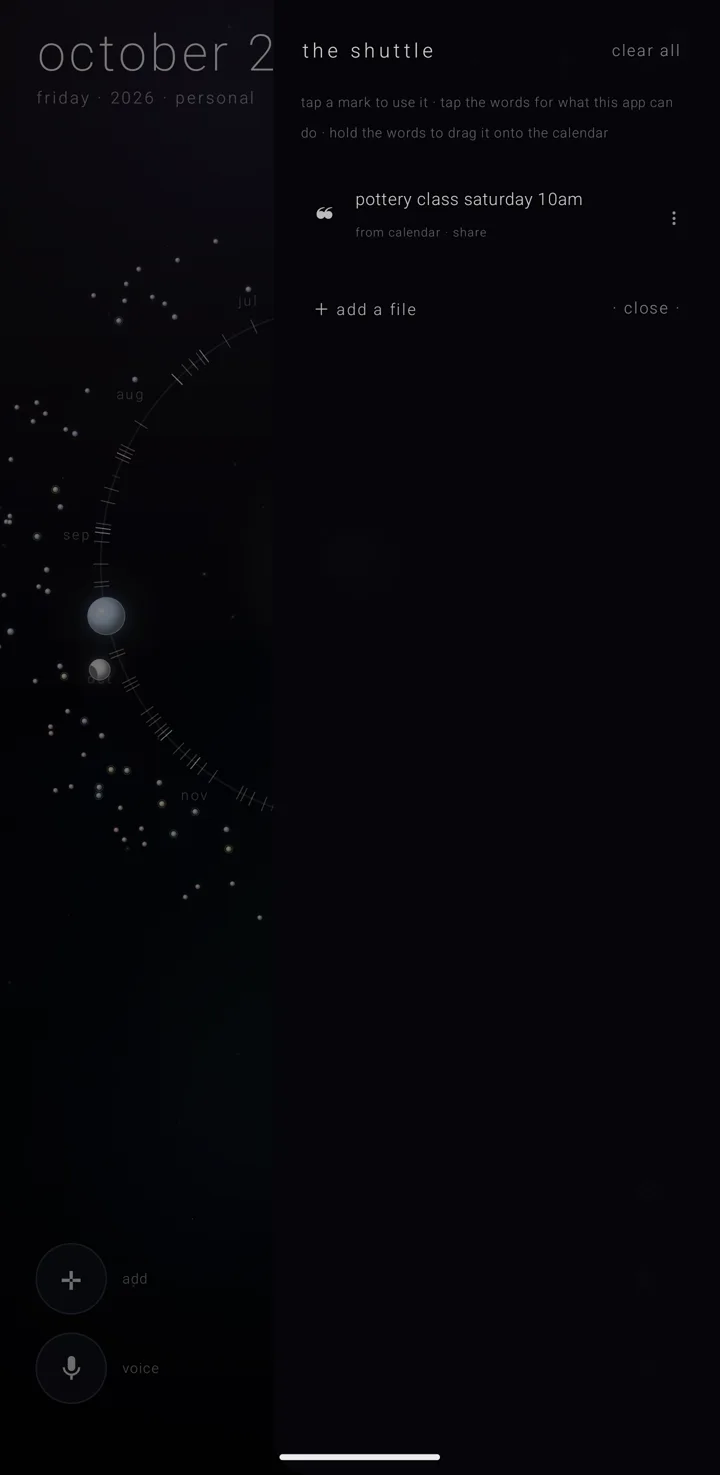
The shuttle is the suite's shared tray for passing things between Zenith apps. Drop something in from any Zenith app and pick it up in any other. There is one shuttle for the whole family, not one per app. It lives on the phone — no account, no cloud, no new permission, and nothing in it leaves the phone. How it works across the family is on The Shuttle.
Open the shuttle
Any of these opens it:
- Tap "shuttle", the rocket at the top right of the sky — the whole calendar screen. It shows a count when something is riding.
- Hold the gear ⚙ for the settings book, then tap "shuttle", lined "the suite's shared crossing". The row has no settings of its own. Tapping it re-reads the shuttle and slides its panel in from the right edge.
- Open it from a commitment's page.
Read the panel
The panel is headed "the shuttle", with "clear all" whenever something is in it.
Empty, it reads "empty — share from any zenith app and it lands here".
Otherwise, the line under the heading says what you can do with a row: "tap a mark to use it · tap the words for what this app can do · hold the words to drag it onto the calendar".
Each row has a mark on the left:
- "⊐" means the row is a file.
- "❝" means it is a scrap of text.
The newest row is first.
Use a text row
- Tap the row's words.
- Pick what the calendar should do with it: - "☄ make it a commitment" — the meteor ☄ is a commitment that happens once; - "◉ place on" followed by a date, which puts it on that day; - "✦ ask the sky about it" — the ✦ is a star — shown only while the AI assistant is on; - "→ send to tasks", shown only when Zenith Tasks is installed.
Or hold the words and drag the row onto the calendar.
Use a file row
- Tap the row's words.
- Choose "⊕ keep it in an almanac". This copies the file into that almanac's material — the files an almanac carries. An almanac is a named, coloured layer of commitments, like one calendar.
The four text actions are not offered on a file on purpose. Each did something absurd with a file name — a commitment called "syllabus.pdf".
What the calendar puts in
- A commitment's share line, from "↗ share" on its page and from "⇪ hold in the shuttle" on a row of the day's brief — the list of the chosen day's commitments. See Share a commitment.
- Spoken words that could not be placed, because no date was heard or the almanac refused them.
- Anything shared into the calendar from another app, through "⇪ hold it in the shuttle for later — every zenith app sees it" on the arrival sheet. See Arriving files & shares.
- An almanac sent out onto the shuttle (Gold). It crosses as the almanac and its files in separate rows, not as one bundle. See Backup, restore & sending an almanac.
When the shuttle won't take something
A line too long to hand across between apps is refused, never quietly lost. The app says "the shuttle couldn't take that — it may be too long to hand over" — on a commitment's page, on a row of the day's brief, and on the arrival sheet. Spoken words it could not take are counted apart when the speaking ends: "‹n› the shuttle couldn't take".
Picking up never removes
A row stays until somebody takes it out on purpose. Taking one out drops its file with it. Adding the same thing twice does nothing, rather than leaving two rows.
Clear the whole shuttle
- Tap "clear all" on the panel.
- Read the warning: "the shuttle is ONE crossing, shared by every zenith app — so this empties it in mind, tasks and the launcher too, not only here." It also says how many items will go.
- Tap "· clear it ·" to empty it, or "· keep them ·" to back out.
Afterwards it reads "the shuttle is empty".
See also.
The Shuttle · Share a commitment · Arriving files & shares · How the calendar fits the suite