Travel & the phone's own calendars
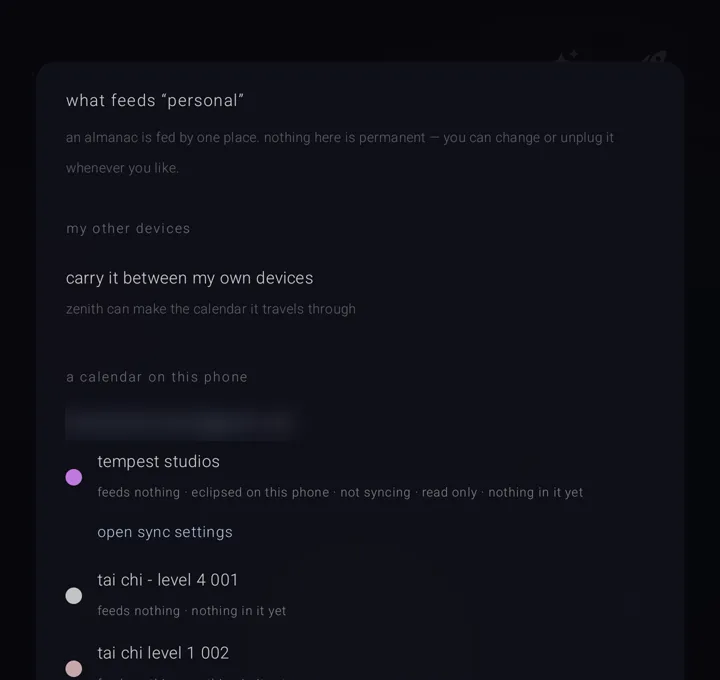
An almanac — a named, coloured layer of commitments, like one calendar — can travel to your other devices through a Google calendar. Or it can be fed by a calendar already on your phone. Both are set behind the "what comes in" door on the almanac's page.
Find the door
- Open the binder — where every almanac lives. Hold the "almanacs" book button in the bottom-right corner of the sky, or tap "manage ▸" at the end of the almanac chips.
- Tap an almanac's row once to choose it, and again to open its page.
- Tap "what comes in".
Travel is the kind headed "my other devices" — "carry it between my own devices". On an almanac something already feeds, it is offered as "⇄ carry it between my own devices instead". The ⇄ is a two-way arrow.
The phone's own calendars are the kind headed "a calendar on this phone".
For how the doors work in general, see What comes in, what goes out.
Travel
The sheet is headed "TRAVEL · ‹name›". It explains first: this almanac's commitments — the things you have to do — move into a Google calendar and live there, so your other devices have them too. They go to your own account. Black Syntax never receives any of it.
Travel is deliberately not a switch. The sheet tells you what will happen before it happens.
Two things do not travel:
- Material — the files an almanac carries. "files stay on this phone and move by .zen" — a .zen being a pack of an almanac's files. See Backup, restore & sending an almanac.
- Who joins a commitment. Those names stay inside Zenith.
Start travelling
- Under "the account it travels through", tap the chip for the account. Nothing is saved until it actually travels.
- Under "the calendar inside it", pick one of the account's calendars. An existing calendar works — Zenith only ever touches what it put there.
- Or tap "⊕ make “‹name›” its own calendar". The ⊕ is a circled plus. At that tap, Google asks you for one narrow permission: the calendars this app makes, and nothing else. Zenith never keeps the answer.
- Tap "start travelling", or "move N commitment(s) and travel" if the almanac already has some.
- It answers "“‹name›” travels now · N moved".
If Google refuses the permission, you see "google did not allow it — nothing was made. try again, or pick a calendar below". Picking a calendar you made yourself works as well.
If no account is offered
The sheet tells you which of two reasons it is:
- Zenith cannot see this phone's calendars yet. That is calendar access, which is separate from connecting a Google account. The sheet points you to Drive instead, which needs none of it. See Connected accounts & Drive sync.
- No account on this phone will accept a write. Add one in the phone's own settings.
Stop travelling
- Tap "stop travelling".
- It asks "stop “‹name›” travelling?" and explains your choices.
- Pick one. There is no default. - "bring them home" — Zenith keeps the commitments and clears them from Google. It answers "N commitment(s) came home". - "leave them" — they stay in Google as ordinary entries, and Zenith lets go of them. It answers "left in google · zenith no longer manages them". - "cancel" — nothing changes.
A travelling almanac always carries Zenith's own detail. Without it, its commitments could not find their way home. It also cannot be unplugged. Stopping its travel is what brings it home.
The phone's own calendars
Zenith can feed an almanac from any calendar already on your phone — Google, Outlook, work, whatever you have added. It reads them on the device. Nothing is sent anywhere.
Feed an almanac from a phone calendar
- Behind "what comes in", choose "a calendar on this phone".
- The first time, tap "✛ let zenith see this phone's calendars". The ✛ is the cross the app adds things with.
- Every calendar is listed under its account name, with its own colour dot, its name, and where it goes: "feeds “‹other almanac›”" or "feeds nothing".
- Tap the calendar you want.
Each row also gives its condition in words: "eclipsed on this phone", "not syncing", "read only" or "nothing in it yet". Every row can be tapped, whatever its condition. Nothing is greyed out. What follows from linking it is told to you after the tap.
Zenith's own copy is listed too, and says it cannot feed an almanac.
If the calendar already feeds another almanac, it asks "move it here?". Answer "move it here" or "leave it".
"↻ refresh" re-reads the list. The ↻ is a circling arrow. The foot of the sheet reminds you: one calendar feeds one almanac. Unplugging it later leaves the almanac and everything in it where it is.
Keeping up with changes made outside
The phone's calendars are re-read every time you come back to the app. Only calendars that feed an almanac are ever read.
In the binder's panel behind the gear ⚙ you also find:
- "re-read this phone's calendars" — "when something changed outside zenith and has not arrived yet".
- "which calendars this phone downloads" — opens the phone's own sync settings. Zenith does not change this. It is a phone-wide setting other apps share.
- "nothing is coming in" — stops the watching outright.
Show an almanac to the rest of this phone
You can let other apps on this phone see one of your Zenith almanacs.
- On the "what comes in" sheet, under "where else it reaches", tap "○ show it to the rest of this phone". The ○ is an open circle. It goes "into zenith's own local calendar — the platform never uploads one".
- Once on, it reads "◉ shown to the rest of this phone" (◉ is a filled circle): "other apps on this phone can see it. google cannot".
It writes only into the calendar Zenith made for itself. Zenith never edits an entry in anybody else's calendar.
If it cannot turn on, it names which of four things is in the way:
- the almanac is locked (see The lock),
- it is already travelling,
- a calendar on this phone already feeds it, or
- Zenith has no calendar access.
See also.
What comes in, what goes out · Connected accounts & Drive sync · An almanac's page · Privacy, permissions & what leaves the phone