Install & make it your calendar
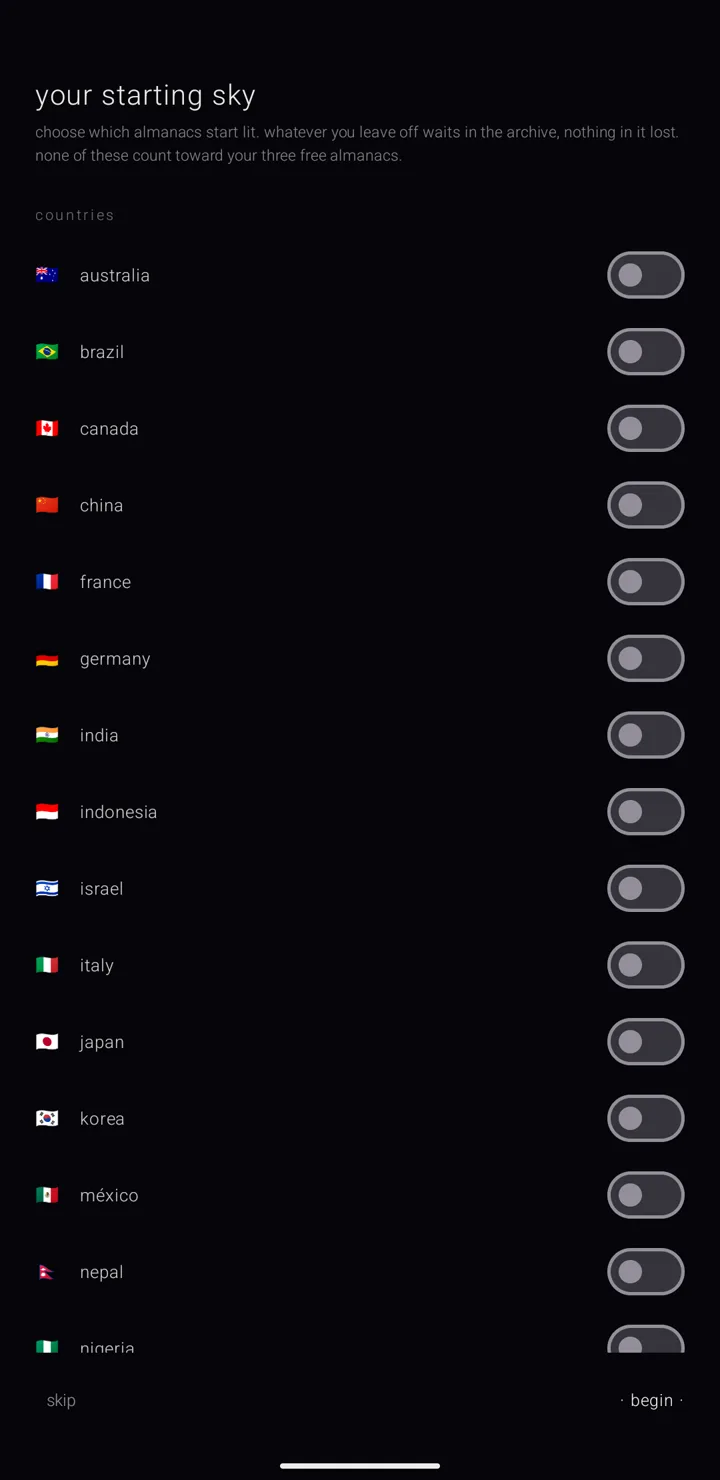
Zenith Calendar runs on Android 8.0 or newer. Nothing has to be set up before it works. The first launch asks two things — which holiday and astrology almanacs start lit, and whether to begin with the demo or empty. Skipping either is a complete answer. No permission is asked for.
The first open
- Open Zenith Calendar. A starry black screen reads "retrieving almanacs & their commitments", with a bar of stars that lights one by one as your calendars are read. On a calendar that reads at once, you may see only the dark — the words wait a moment before they appear.
- "your starting sky" opens — one page, shown once. See below.
- "begin with the demo, or empty?" follows it — one more page, shown once. See below.
- The sky — the whole app, one canvas — opens on the year.
Your starting sky
A fresh install shows this page before anything else. It asks which of the almanacs the app ships start lit — drawn on your calendar. An almanac is a named, coloured layer of commitments, like one calendar. Under the title it says: "choose which almanacs start lit. whatever you leave off waits in the archive, nothing in it lost. none of these count toward your three free almanacs."
Each almanac is a row with its mark, its name and a switch, under three headings:
- "countries" — twenty, shown open: australia, brazil, canada, china, france, germany, india, indonesia, israel, italy, japan, korea, méxico, nepal, nigeria, pakistan, philippines, turkey, uk and usa.
- "faiths" — forty-two, in five lines that start closed: "christian churches · 13", "muslim communities · 7", "buddhist reckonings · 10", "hindu · 2" and "more faiths and traditions · 10". Tap a line to open it; its ▸ turns to ▾. Once any almanac in a line is on, the line says so — "▸ christian churches · 13 · 2 lit".
- "astrology" — "western" and "vedic", shown open.
Your phone's own country starts switched on, read from the region of the phone's language setting. English (India) starts "india" on; a phone set to China starts "china" on. Nothing else starts on: no faith and no astrology. A phone whose region has no almanac — Hong Kong, Macau and Taiwan among them — starts with nothing on.
"personal", "work" and "celestial" are not on the page. They are always there and always lit. "celestial" holds the sky's own events, like full moons, eclipses and equinoxes.
To finish:
- "· begin ·" lights every almanac you switched on and puts every one you left off in the archive — the binder's shelf for almanacs taken off the calendar, whole.
- "skip", or going back, keeps what was on when the page opened: your country lit, the rest archived.
Closed any way at all, the page is answered and never shows again. You can change your mind at any time: every almanac on this page starts locked, so you unlock one in the archive and put it back. Or switch it on or off on settings › "the almanacs". See Holiday almanacs.
Begin with the demo, or empty
However you close "your starting sky", one more page follows, over the same dark: "begin with the demo, or empty?" Under it: "zenith can open with demo content — almanacs already filled in, to look around in — or with nothing in it but what you just chose. the demo never counts toward your three free almanacs."
- "· proceed with the demo ·", bottom right, adds the demo almanacs.
- "start empty", bottom left, or going back, adds none.
What you chose on "your starting sky" is kept either way; this page changes none of it. Answered any way, it never shows again. Its foot says where to change your mind: "you can change this later — the binder's settings have “add demo content” and “remove demo content”." See The binder's settings.
What is already in it
After your starting sky, the binder — the screen that holds all your almanacs — stands in this order:
- "personal", empty and yours
- "work", empty and yours
- "celestial"
- "astrology · western" and "astrology · vedic", if you lit them
- the holiday almanacs you lit, sorted by religion first and by their own name second
A country or a single faith sorts by its own name, so each religion's almanacs stand together where its name falls: the buddhist reckonings after "brazil", daoist and taoist after "china", the christian churches after them, hindu after "germany", the muslim communities after "méxico". The ones you left off wait in the archive in the same order.
The order matters on the sky: the higher an almanac stands in the binder, the closer to the sun its bodies sit. Once you move anything, the order is yours, and an update never moves it back. See The binder.
If you started with the demo, the demo almanacs stand after these, at the end of the spine. Two of them arrive locked, and one of those two waits in the archive.
Everything the app ships with is free, the demo included. None of it counts toward the three almanacs you can make without Gold. See Sky & astrology almanacs.
What rings at first
Reminders on commitments are on from the start. A calendar you install is expected to ring.
Six things are switched off once, on that first run: the morning, the afternoon, the evening, the night, your own announcements, and the general notice the evening before. All are daily notifications you did not ask for. Turn them on any time on settings › "notifications", or on settings › "the morning". See The morning, the evening bell & tomorrow and Announcements.
Every permission is asked for at the moment something needs it, never before you have seen the sky. See Privacy, permissions & what leaves the phone.
Make Zenith your calendar
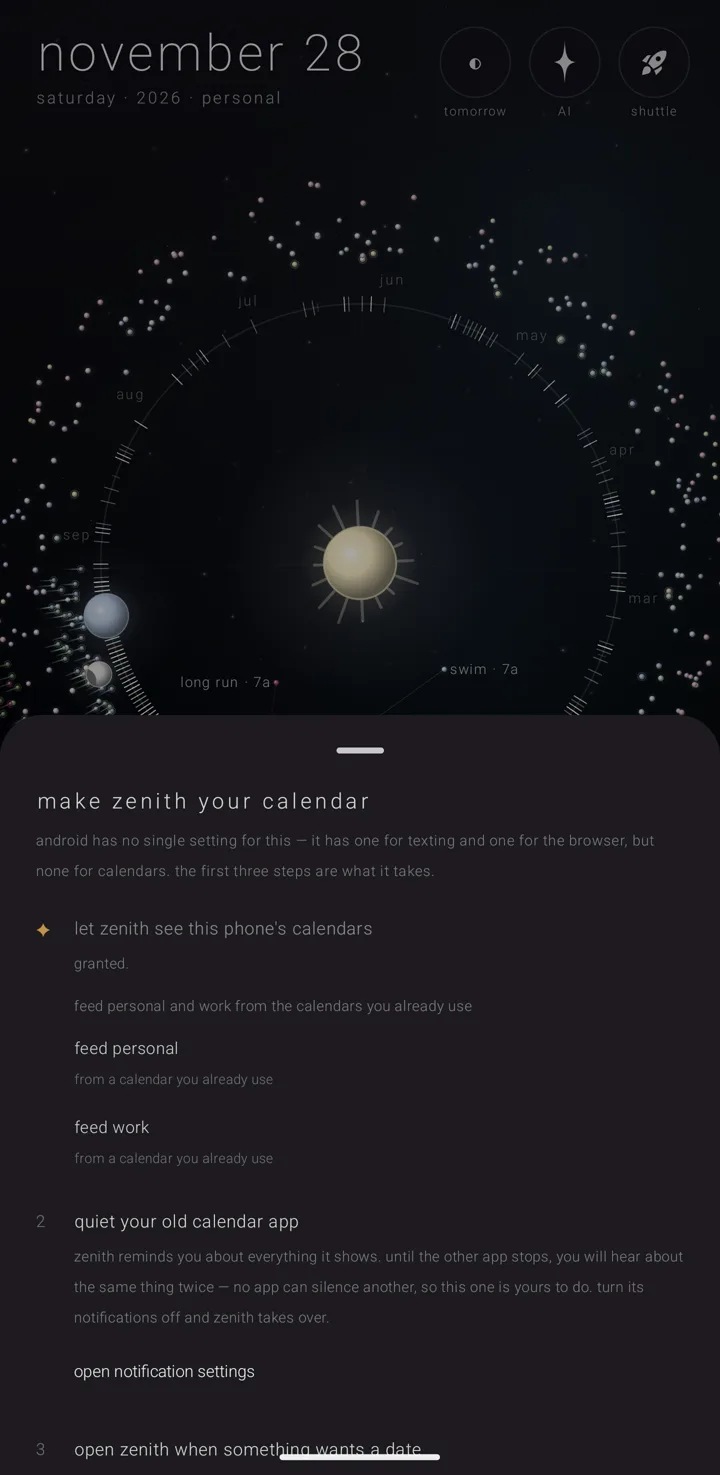
Android has no "default calendar" setting. It has one for texting and one for the browser, but none for calendars. So the sheet "make zenith your calendar" builds the same result out of real parts, and never claims to have set a default.
It offers itself once, by itself, after "your starting sky" and the demo page are answered, and only when all of these are true:
- you have not seen it before
- the calendar cannot yet see any of the phone's calendars
- nothing else is open
- you opened the app plainly, not through a link, a widget row, a shortcut or a file
Close it any way — back, a swipe, "· done ·", or a door out of it — and it counts as answered. It will not offer itself again.
Work through its four steps in order. A finished step shows the gold star ✦ in place of its number.
- "let zenith see this phone's calendars" — tap "allow calendar access". This reads every account already on the phone, on the device, and sends nothing anywhere. Under it are one row per built-in almanac, "feed personal" and "feed work". Each opens that almanac's own "what feeds it" sheet.
- "quiet your old calendar app" — tap "open notification settings". It goes straight to your other calendar app's own notification page. No app can silence another, so turn its notifications off there. Until you do, you will hear about the same thing twice.
- "open zenith when something wants a date" — the next time another app opens a date, Android asks which calendar to use. Pick Zenith and tick always. This step has no button and is never marked done, because nothing can report it.
- "carry your almanacs between your devices" — tap "set up syncing" to connect a Google account. Your almanacs can then follow you to your other devices. See Connected accounts & Drive sync.
Find it again later
- Hold the gear ⚙ in the bottom-right corner of the sky to open the settings book.
- Open settings › "make zenith your calendar".
The row's second line shows where you stand:
| It reads | Meaning |
|---|---|
| "set up" | everything is in place |
| "not yet — set it up" | there is still something to do |
| "the calendar feeding "…" is gone — link it again" | the phone calendar behind an almanac was removed |
| ""…" is paused — resume it on its page" | an almanac's feed is paused |
"set up" is strict, and the app checks it with the phone each time. It means the calendar can see the phone's calendars, and "personal" or "work" is fed by a phone calendar that is still there and not paused.
See also.
Your first five minutes · Travel & the phone's own calendars · Privacy, permissions & what leaves the phone