The week view
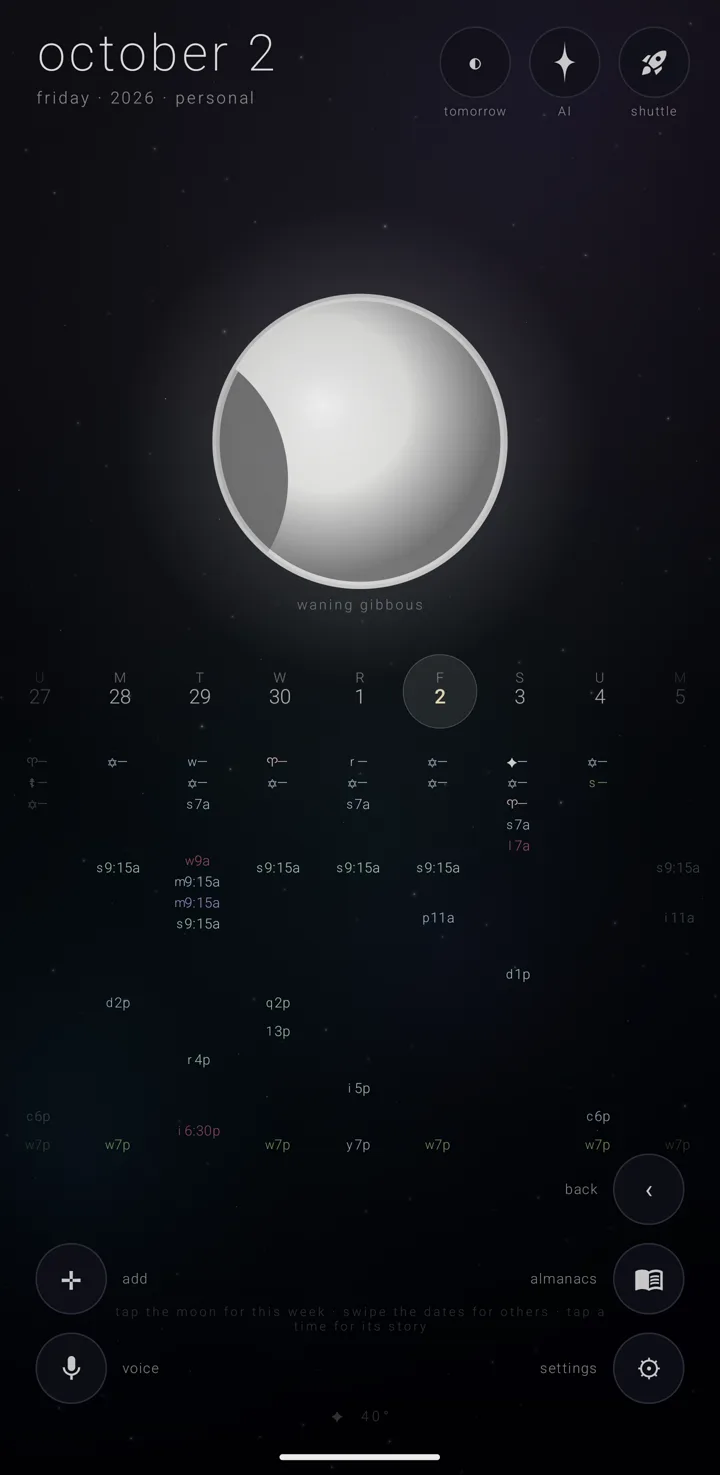
The week view is a week under its moon: the moon on top, and a grid of nine days below.
Getting here
- Dive into the moon from the year or the day view — the animated move where the camera flies into the body you touch.
- Lift the moon in the month view.
- Tap "weekly" in a brief's "view in" row.
The moon
The moon shows the phase at the middle of the week, four days on from its first day. No sun is drawn here, but the moon is lit from the sun's true direction for that date. The phase's name is written under it.
Tap the moon to come home to this week, on today. It does not change view.
Nine columns
The grid shows the seven days of the week, plus the day before and the day after in grey, at about a third the strength.
Each column shows its weekday name, in whichever style is set, and its day number in the chosen calendar system's own month. Today's number is drawn in the sun's colour, and the picked day is ringed.
The week starts on the chosen tradition's first day. With gregorian, you can choose any of the seven days yourself. See Calendar systems & names and Time & directions.
The time grid
Under each day stand its commitments. Each is a mark and a start time — "9a", "2:30p", or "9:00", "14:30" with the 24-hour clock on. All-day ones come first, as "—". The times line up across all nine columns.
The mark tells you which almanac a thing belongs to: the commitment's own picture, else its glyph, else its almanac's, else a first letter.
What does not fit is counted as "+N" at the foot of the column. What is counted there cannot be tapped or scrubbed onto.
With the day's brief open, the times close up and end higher, so the brief — the picked day's list — stands below them rather than over them. Whatever no longer fits joins the column's "+N", and taps follow the new layout.
What the eye puts away
The eye, "view", stands here as on every view. A kind of repeat it is putting away is not in the columns, and it cannot be tapped or scrubbed onto. See The eye — putting repeats away.
Zenith Tasks' stars
While the eye's "tasks" pill is on, the stars Zenith Tasks has given a due date stand in the same columns among the commitments. Each wears Tasks' four-point star where a commitment wears its mark. Its time — "—" all day — is in the sky's own ink, not an almanac's colour. A done star is dimmed and crossed out. Stars count in the "+N" like anything else.
Scrubbing the grid
Start a drag inside the grid of start times, and you read the week without lifting your finger.
- The column under your finger is the picked day. Each new one plays a note pitched from its weekday.
- Whatever your finger is over takes the brief with it. Sweep down a day to read each commitment in turn, or sideways to cross into the next day.
- Each commitment lands with a firmer bump and a note pitched from its hour.
The scrub reads the same way a tap does — the nearest start time — so what you scrub onto and what you would have tapped are never different. You feel the grid as a surface, stronger over a commitment than between them.
Rolling the week from its edge
- While scrubbing, keep your finger on one of the grey outer days.
- The spot blinks. The first two blinks bring a light tick and a note.
- On the third, the whole week moves that way, with a stronger tick and a tilt.
The day under your finger comes with it. Your finger stays in the same column, which is now a different date. The count starts over, so holding keeps rolling. Moving off the edge column, or lifting your finger, stops it.
Paging and the moon
Away from the grid, a sideways drag pages the weeks — a short swipe for each week. The direction follows "reverse the moon's spin". See Time & directions.
A firm downward pull takes hold of the moon, for the month. While the grid has your finger, the pager does nothing.
Carrying the moon to the month
- Pull firmly downward anywhere to take hold of the moon. Starting on the moon itself, a gentler pull will do.
- While you carry it, the sky dims and a faint road shows the path from the moon's place in the week to its place in the month. The moon grows and turns as it travels, still truly lit for the date.
- Let go past halfway and the month opens. Let go short of it and the moon drifts home.
A tap while carrying sets the moon back down. Sideways swipes that start on the moon still page the weeks. See The month view.
Taps and holds
- A time opens that commitment in the brief. A Zenith Tasks star's time opens it in Zenith Tasks. Scrubbing over a star leaves the brief on the day.
- A date, or the empty grid under it, picks that day with its brief pinned.
- Hold a date in the row of dates to start a new commitment on that day. Holding the time grid below does nothing. See Add a commitment.
The hint
The hint along the foot reads "tap the moon for this week · swipe the dates for others · tap a time for its story". It wraps between the corner buttons rather than running under them. A second line grows upward into empty sky.
While the moon is being carried, it reads "carry the moon down · past halfway lies the month".
The hint says nothing about the scrub or the edge roll.
See also.
The day view · The month view · The day brief · Time & directions