Your first five minutes
Let's get you from a fresh install to a calendar that is yours, with one thing on it and one reminder set. It takes about five minutes.
Before you start
Open the app. A starry screen reads "retrieving almanacs & their commitments", with a bar that fills while your calendar is read.
No permission is asked for yet. Each one is asked at the moment something needs it.
0 · Choose your starting sky
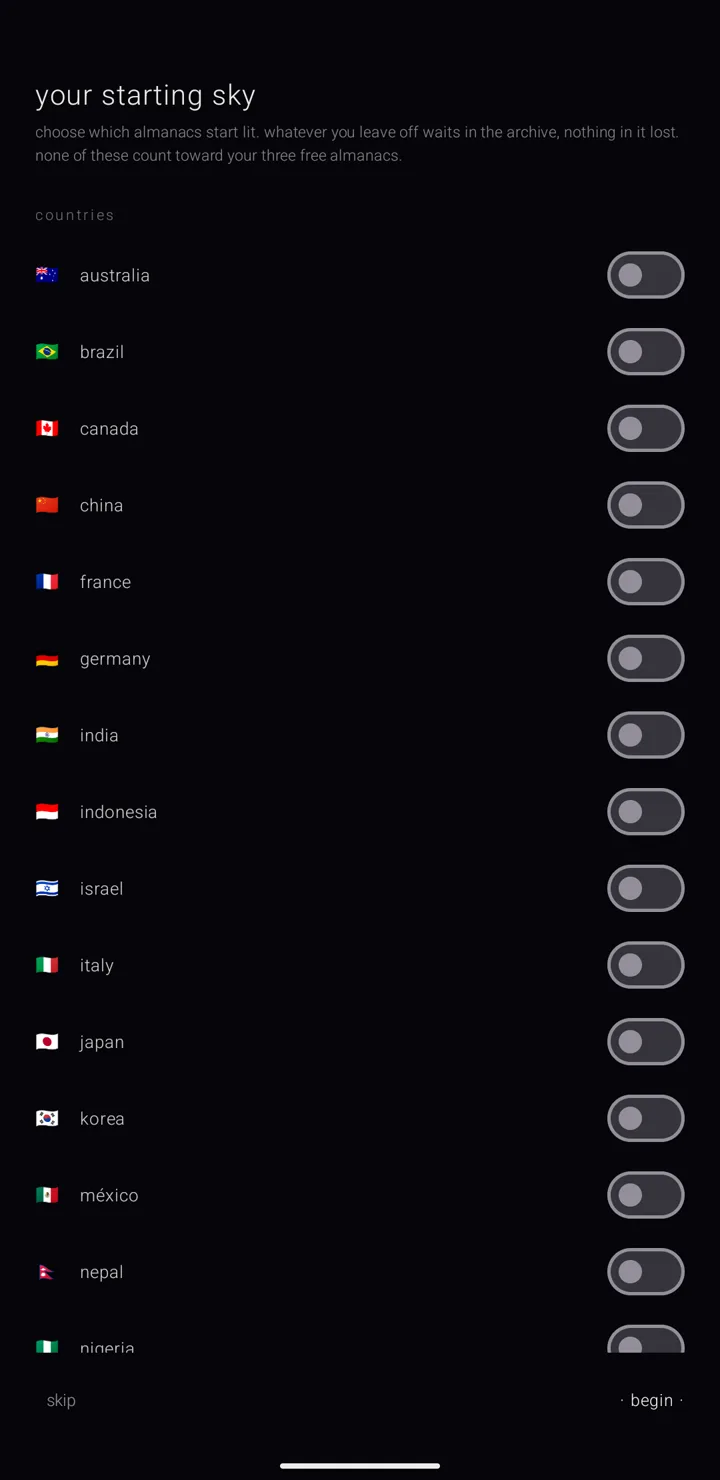
The first page, "your starting sky", asks which almanacs — named, coloured layers of commitments, each like one calendar — start lit on your calendar. It offers twenty countries, forty-two faiths and traditions, and two kinds of astrology.
- Your phone's own country is already switched on.
- Tap a faith line, such as "christian churches · 13", to open it, and switch on the ones you keep.
- Tap "· begin ·".
"skip" gives you just your country. Everything you leave off waits in the archive, whole, so you can light it later. See Holiday almanacs.
One more page asks "begin with the demo, or empty?". "· proceed with the demo ·" adds almanacs already filled in, to look around in; "start empty" adds none. The demo never counts toward your three free almanacs, and you can add or remove it later from the binder's settings. See Install & make it your calendar.
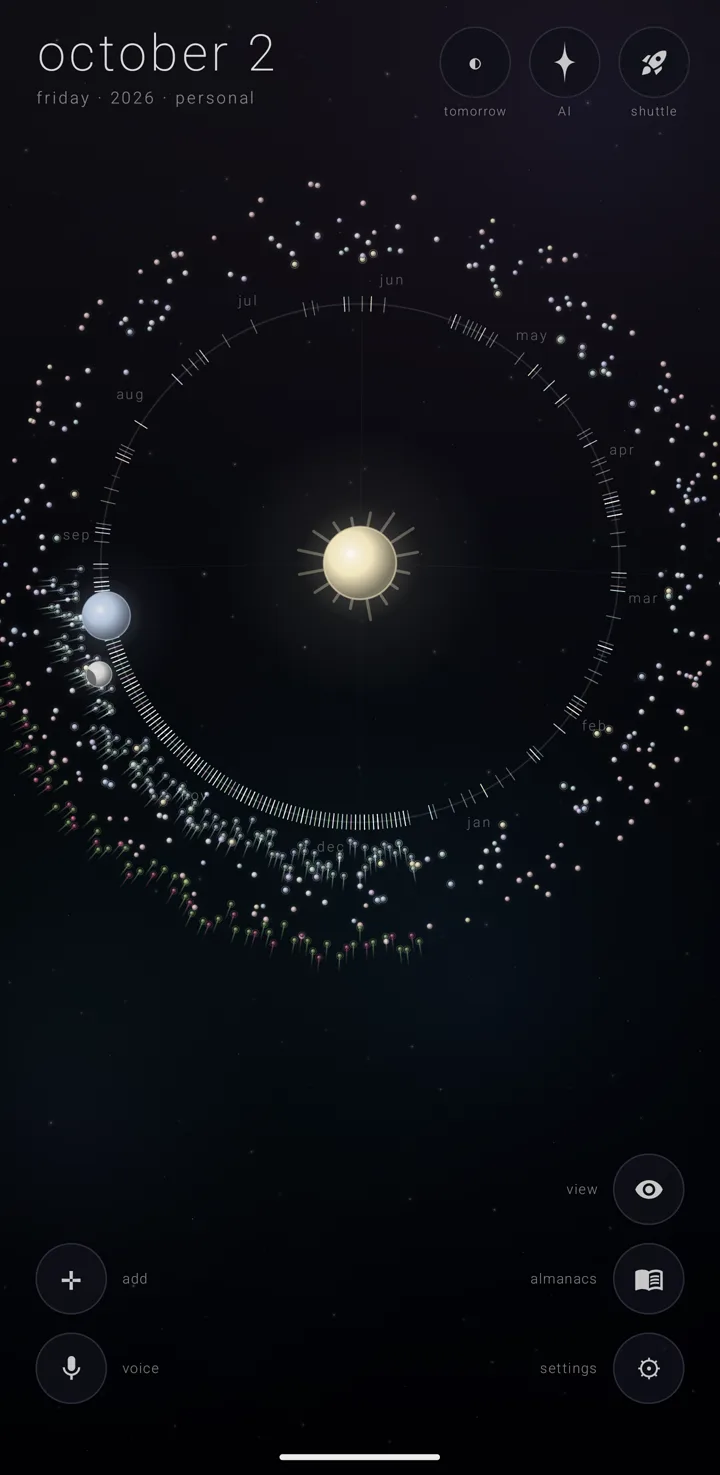
Then the app opens on the year view — the whole year drawn as a ring round the sun. "personal" and "work" are there, empty and ready for you, with "celestial" — the sky's own events — and everything you lit.
1 · Make it your calendar
On a plain first open, after your starting sky and the demo page, the sheet "make zenith your calendar" offers itself once. If you close it — back, a swipe, or "· done ·" — it will not come back by itself. You can always reach it again: hold the gear ⚙, "settings", in the bottom-right corner of the sky, and open the row "make zenith your calendar".
The sheet has four numbered steps:
- "let zenith see this phone's calendars" — tap "allow calendar access"
- "quiet your old calendar app" — tap "open notification settings", which goes straight to the other calendar app's own page
- "open zenith when something wants a date" — no button, because nothing can report it
- "carry your almanacs between your devices" — tap "set up syncing"
Each finished step shows the gold star ✦ in place of its number. Back in settings, the row's second line tells you where you stand: "set up", or "not yet — set it up". The full walk-through is in Install & make it your calendar.
2 · Place one commitment
A commitment is one thing you have to do — an event or a task.
Tap the cross ✛, "add", in the bottom-left corner. A new commitment opens on the day you have picked. Type its name under "what happens?" and tap "place it".
Holding a day does the same in the other views: anywhere in the day view, a date in the week's row of dates above the grid, or any cell of the month's six rows. The year view is the exception. There a hold takes the earth or the ring in hand instead, so use ✛.
Holding ✛ itself offers two choices: "✛ a commitment" and "◔ an almanac". See Add a commitment.
3 · Find the binder
The binder is where all your almanacs stand in order, on a spine you scroll.
Hold the book button, "almanacs", in the bottom-right corner. Its hint reads "tap to choose · again to open · hold to move".
The binder is one page with three states — the binder, the archive and the pyre. Turn between them with the shelves button ▣ in its bottom-left corner. See The binder.
4 · Show and hide an almanac
Now tap that same book button. A chip for each almanac floats beside it. This is the legend — your almanacs at a glance.
Tap a chip. That almanac is eclipsed — kept whole, but not drawn on the sky — and its dot becomes an outline. Tap it again and it shines again.
Hold a chip for a small menu: "✎ rename", "☰ its commitments", "◉ make default" and "… more". See What an almanac is.
5 · Set one reminder
The brief is the picked day's list of commitments, written along the bottom of the sky.
- Pick the day that holds your new commitment.
- Hold its row in the brief.
- Choose "🔔 evening-before bell".
The row now reads "🔔 evening-before bell · on", and the app answers "“x” will ring the evening before", with your title in place of x.
To set how much warning every commitment gets, open settings › "notifications" › "how much warning, unless an almanac says otherwise". The choices are "at the moment", "5 min", "10 min", "30 min", "an hour" and "a day". Switching a kind of notification on asks the phone for permission to notify, if it has not been given yet. See Reminders.
You're set
Your calendar knows your phone, it holds your first commitment, and that commitment will ring the evening before. Next, take a look round The sky.
See also.
The sky · The day brief · Add a commitment · Reminders